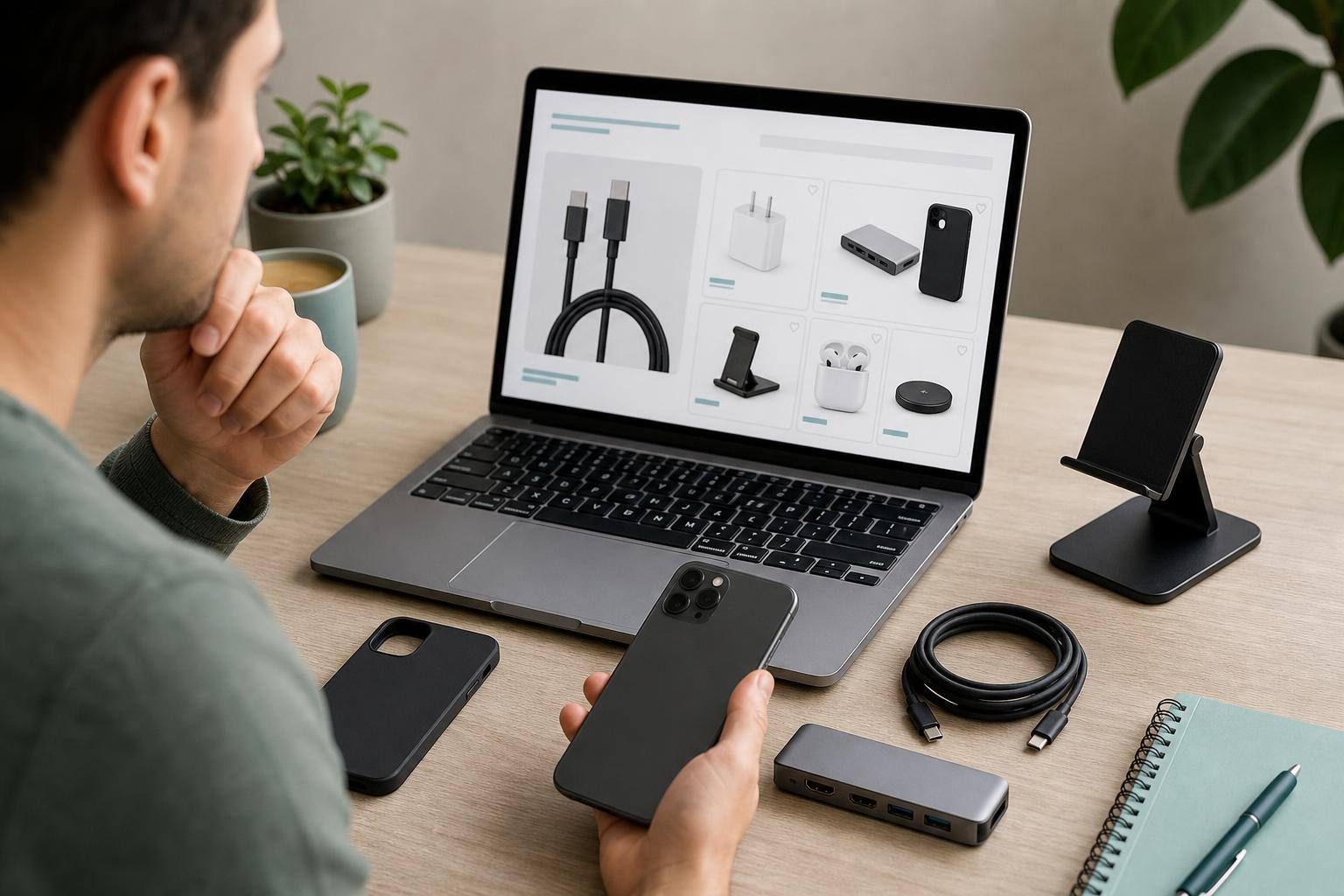
Start by Identifying Your Device and Your Needs Precisely
Compatibility is not confirmed just because an accessory has a connector that appears to match your device’s or because the listing uses terms such as “universal.” To make an informed decision, you need to connect three elements: your device’s exact model, the specific function you want to perform, and the accessory’s published specifications.
Write down your device’s brand and full product name, as well as its generation, year, size, capacity, or variant when those details may matter. If there is a model number or SKU, include it in your record. Devices in the same family may differ in dimensions, ports, camera placement, or capabilities, so you should not assume they will accept the same case, keyboard, charger, or dock.
Check the manufacturer’s official information first. For Surface devices, Microsoft states that you can check the model name in the Surface app or system information, and that it can also be found through a registered serial number. Once you have identified the device, define the outcome you expect: charging it, transferring data, connecting a display, using audio, networking, storage, or attaching it to a mount.
- Prepare a record with the full model, variant, operating system, port or connection, and required use.
- Do not use only the screen size or the name of a product family to choose a case or keyboard.
- If the accessory relies on an app or driver, also record your device’s operating system version.
Compare Official Documentation and Separate the Connector From the Function
Find your device’s official specifications page and compare it with the accessory’s technical sheet, manual, or compatibility list. The clearest evidence is that your exact model is expressly listed among compatible devices. When no such list is available, check that the technical requirements on both sides match in a verifiable way.
General descriptions should be treated cautiously. Saying that a product works “for tablets” or “for USB-C” does not in itself confirm that it will work with your model or perform everything you need. USB-IF clarifies that USB-C describes a connector type, but does not automatically imply USB 3.2, USB4, or USB Power Delivery. As a result, two products with USB-C ports may physically connect while offering different capabilities.
Review every function separately. For charging, check the supported standard and stated power. For data, verify the required USB version or speed. For video, identify the stated protocol, such as DisplayPort or HDMI through an adapter, along with the resolution and refresh-rate conditions you need. If you need Ethernet, audio, cards, or storage, look for an explicit statement of compatibility.
The cable also deserves separate review. Apple states that the USB-C cable included with certain iPhones supports charging and USB 2 speeds, while USB 3 requires a compatible USB 3 cable. The fact that a USB-C-to-USB-C cable connects and charges does not demonstrate that it supports the required data transfer or video output.
- Prioritize manuals, technical specifications, and compatibility lists over marketing titles, photos, or generic diagrams.
- For USB-C cables, look for specific power and speed information, not just the connector type.
- Do not interpret “compatible” as meaning maximum performance or access to every feature.
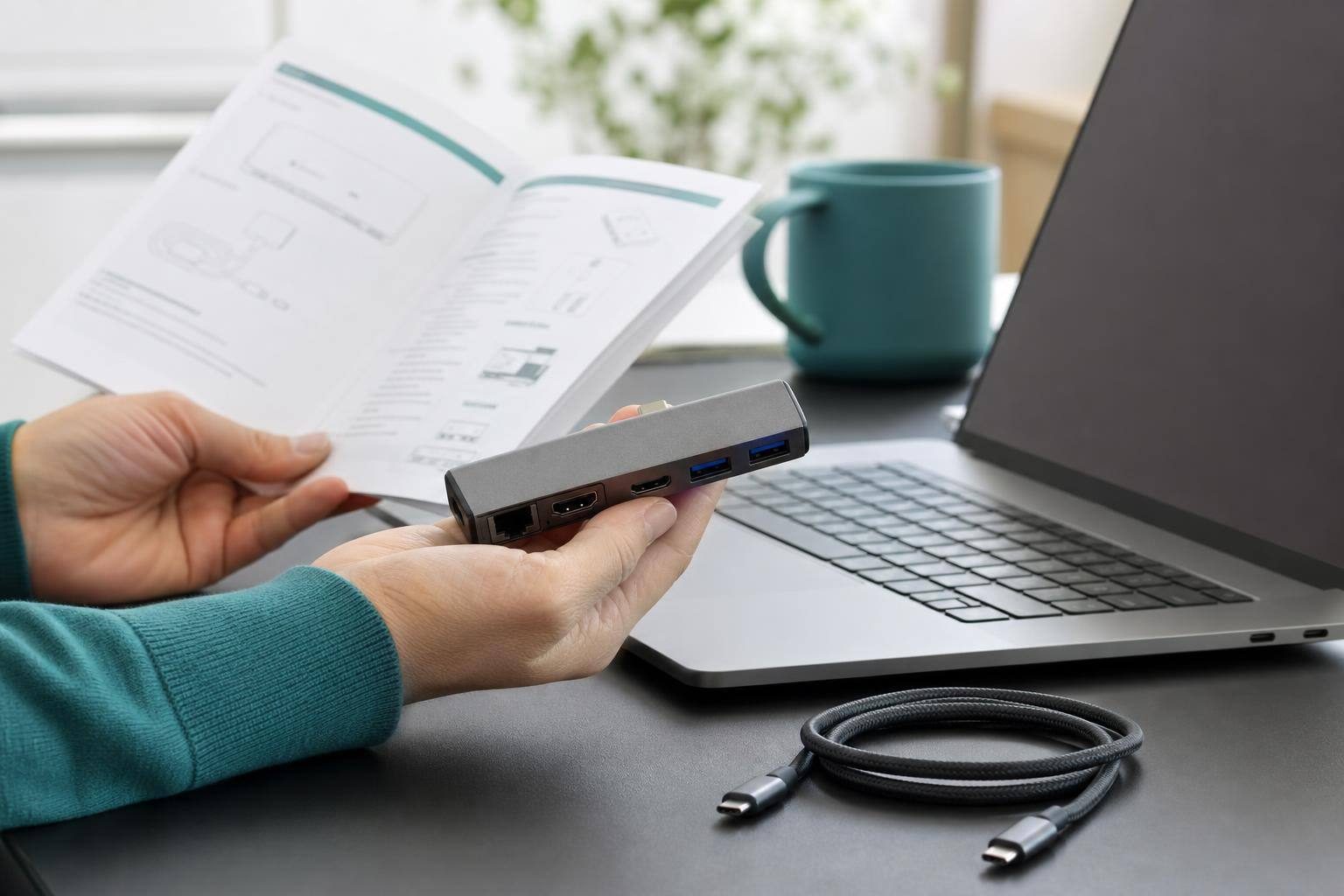
Check the Entire Technical Chain and the Physical Fit
Advanced functions depend on a complete chain: the device, port, cable, adapter or dock, and final peripheral. USB-IF states that to take advantage of USB 3.2 or USB4, both the host device and the connected device must provide that capability, and a full-featured USB-C cable must be used. A single component with a higher specification does not add that capability to the others.
If you want to connect a display, verify that the device supports video output, which protocol it uses, whether the adapter or dock supports that signal, whether the cable meets the requirement, and whether the display accepts the resulting output. The same logic applies to charging, storage, networking, and other peripherals. Do not infer fast data, video, or fast charging merely from the presence of USB-C.
When the accessory attaches to the device, dimensions and design matter as much as the electronics. Compare published dimensions; the locations of cameras, buttons, speakers, and ports; the added thickness of a case or screen protector; and the attachment system. For stands, car accessories, or products that hold weight, review the stated limits, intended orientation, and any mounting conditions.
A cable’s certification or label alone does not resolve every question. USB-IF explains that USB-C-to-USB-C cables in its compliance program are labeled with a 60 W or 240 W power capability and, except for certain USB 2.0 categories, with the corresponding data speed. However, a certified cable does not increase the capabilities of the connected devices.
- Map out the full chain before buying: device, port, cable, adapter, and destination.
- For cases and mounts, compare the physical layout, not just the overall dimensions.
- Stop the purchase if essential information is missing for any component in the chain.

Resolve Ambiguities Before Paying and Compare Carefully
An accessory may work only partially: it may pair over Bluetooth or allow basic charging, but not enable the special controls, updates, profiles, or advanced function you expected. Before buying, identify the level of functionality you need and review software, account, app, driver, or configuration requirements when they are stated.
If the documentation does not confirm your situation, request a written, specific answer from the manufacturer or seller. Include the accessory’s exact reference, your device’s brand and full model, the desired function, and the relevant port or operating system. Keep the response along with the technical specifications, screenshots of the requirements, and the store’s current return policy.
When comparing listings, do not decide based only on a photo, a broad promise, or the connector name. Compatibility should be verified separately using the available documentation and specifications. An offer only makes sense if the accessory meets the requirements of your particular case.
The decision is reasonable when you have identified the exact model, confirmed the correct fit or connector, found the required function stated, covered the cable, power, protocol, and software requirements, and found no official limitation that conflicts with your use. If any of these points remains uncertain, the prudent choice is to pause the purchase.
- Structure your inquiry this way: exact accessory, exact device, specific function, port, and operating system.
- Save evidence before payment, especially if the compatibility list is unclear.
- Treat vague listings such as “universal,” “for tablets,” or “USB-C compatible” as insufficient.