
Start by defining exactly what counts as an option
A watchlist should help you compare and decide, not turn into an archive of links that are hard to interpret. The most important principle is that each row represents one clearly defined purchase option. To achieve this, create an identifier made up of the brand, model or part number, and the variant that actually affects your decision.
The variant may be capacity, size, color, version, compatibility, material, or package type. Two items with the same model and capacity may be duplicates, but the same model in a different capacity should not be merged without reviewing it. Looking similar is not enough: their identities must match in the fields that matter for that category.
It is helpful to separate product identity from information that changes. The product is the model and its variant; the seller indicates where it is available; the terms cover matters such as shipping, returns, warranty, taxes, or availability; and the observed price is temporary information that should include a date. This way, a new retailer or a price change does not create a new row for what is still the same product.
- Use a convention such as: Brand + model + relevant variant.
- Keep one row per product-variant, grouping alternative links or sellers within it.
- Do not treat a difference in color, size, or capacity as irrelevant if it changes usability or compatibility.
Create a fixed structure for fair comparisons
Free-form notes often lead to duplicates because the same information is written in different ways. A uniform structure makes real differences visible and allows you to compare options using the same criteria. You can use a spreadsheet or any system that keeps fields consistent.
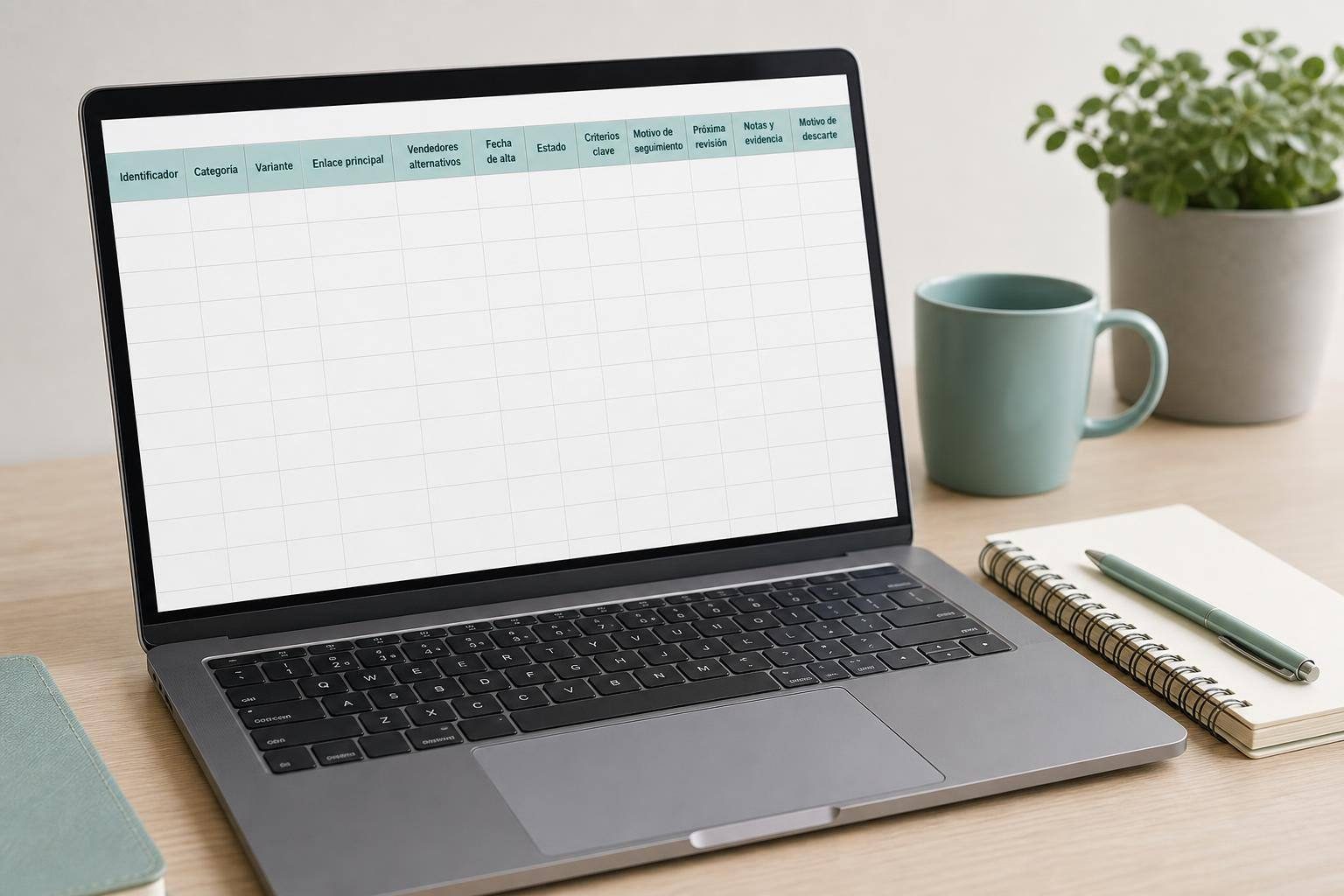
A minimum template can include: identifier, category, variant, primary link, alternative sellers, date added, status, key criteria, reason for tracking, next review, notes and evidence, and reason for rejection. The primary link lets you return to the page you want to check; alternative links prevent you from creating an additional row for every store.
For status, avoid improvised labels such as “maybe,” “look at,” “check later,” or “pending.” Instead, limit the choices to a short, clear set: Research, Compare, Wait, Buy, Rejected, and Archived. If you work in a spreadsheet, a dropdown list with restricted entries reduces writing variations and makes the list easier to filter.
Standardization should begin when you add a product. Write every brand name the same way, copy the model as shown in the available documentation, use consistent units, and remove extra spaces. It also helps to keep one date format, for example 2026-09-15. These small habits prevent “500 GB,” “500gb,” and “0.5 TB” from being treated as different products.
- Include specific key criteria, such as dimensions, compatibility, material, or warranty terms.
- Record the reason for tracking it: avoid keeping items that no longer address a real need.
- Set aside a column for questions or verified specifications; do not scatter them across several rows.
Identify duplicates before deleting them, and merge the information
Removing duplicates should not be the first step. First, filter or flag possible matches using the identifier you defined. Then manually check whether both rows truly represent the same product-variant. This review is essential because two similar product names may refer to different configurations, while two different descriptions may refer to the same model.
If you use a spreadsheet’s remove-duplicates feature, select only the columns that define the item’s identity, such as brand, model, and variant. Your choice of columns changes the result. In addition, removal may affect the entire row and cause notes, dates, or links that were not used in the comparison to disappear.
When you confirm that two entries are duplicates, merge them before deleting one. Keep the more complete row, transfer alternative sellers and links, retain the oldest date added, and combine useful notes. Add confirmed specifications, compatibility restrictions, outstanding questions, and any reason that may have led to an earlier rejection. Only then should you delete the repeated row.
Before a broad cleanup, save a copy of your list. This allows you to recover information if the matching criteria proved too broad. Automation can save time, but it does not replace the decision about which information makes two items genuinely the same.
- Review potential matches first, either visually or with a filter.
- Do not delete a row without transferring its useful links, notes, and dates.
- Make a copy before applying bulk duplicate removal.

Keep the list active through brief, regular reviews
An organized list needs little maintenance if the review process is repeatable. Schedule a weekly or monthly cleanup depending on how urgent your purchase is. In each session, ask whether the need is still current, whether the variant is still suitable, whether any essential detail still needs verification, and whether a preferred option exists.
Also review items with the Wait status. They may be there only because you still need to compare terms or have not yet decided when to make a decision. Assign a next review date so they do not become forgotten entries. If they no longer serve a purpose, move them to Rejected or Archived.
You do not need to delete every rejected item. Keeping them archived along with the reason prevents you from repeating research on products you already ruled out because of incompatibility, size, return terms, or another valid reason. The archive serves as a record of decisions and keeps the active list focused on options that still deserve attention.
The result is a shorter but more informative list: each row shows a distinguishable option, sellers are not confused with the product, and decisions are based on visible criteria. Comparing then stops being an accumulation of tabs and becomes a process you can easily resume.
- Set a next review date for every active product.
- Archive rejected items with a brief explanation instead of losing the history.
- When you choose a preferred option, update the status of alternatives so you do not keep reviewing them out of habit.
Sources and references
- BUILDING BLOCKS TEACHER GUIDE ↗
- Create an in-cell drop-down list - Computer - Google Docs Editors Help ↗
- Filter for unique values or remove duplicate values | Microsoft Support ↗
- Filtrar valores únicos o quitar valores duplicados | Microsoft Support ↗
- Split text, remove duplicates or trim whitespace - Computer - Google Docs Editors Help ↗
- Federal Register / Vol. 89, No. 49 / Tuesday, March 12, 2024 / Rules and Regulations 17707 ↗