
Define the Exact Item You Are Tracking
The first step is not writing down a price, but precisely identifying what you want to buy. Two items with the same name may differ in size, color, capacity, configuration, or condition. If you do not record those details, a later comparison can be misleading.
For each item, save a short but specific description, its model, SKU, or link, and the seller where you found it. Also add any condition that affects its value to you, such as the warranty, availability, delivery, or return policy.
Treat each combination of variant and seller as a separate case when those differences change the cost or terms. This will keep you from interpreting a price for a non-equivalent product as an opportunity.
- Include the model, variant, and seller instead of using only the product name.
- Note whether the product is new, refurbished, or used when that condition is relevant.
- Save the link or identifier so you can verify the item later.
Record the Amount That Actually Affects Your Purchase
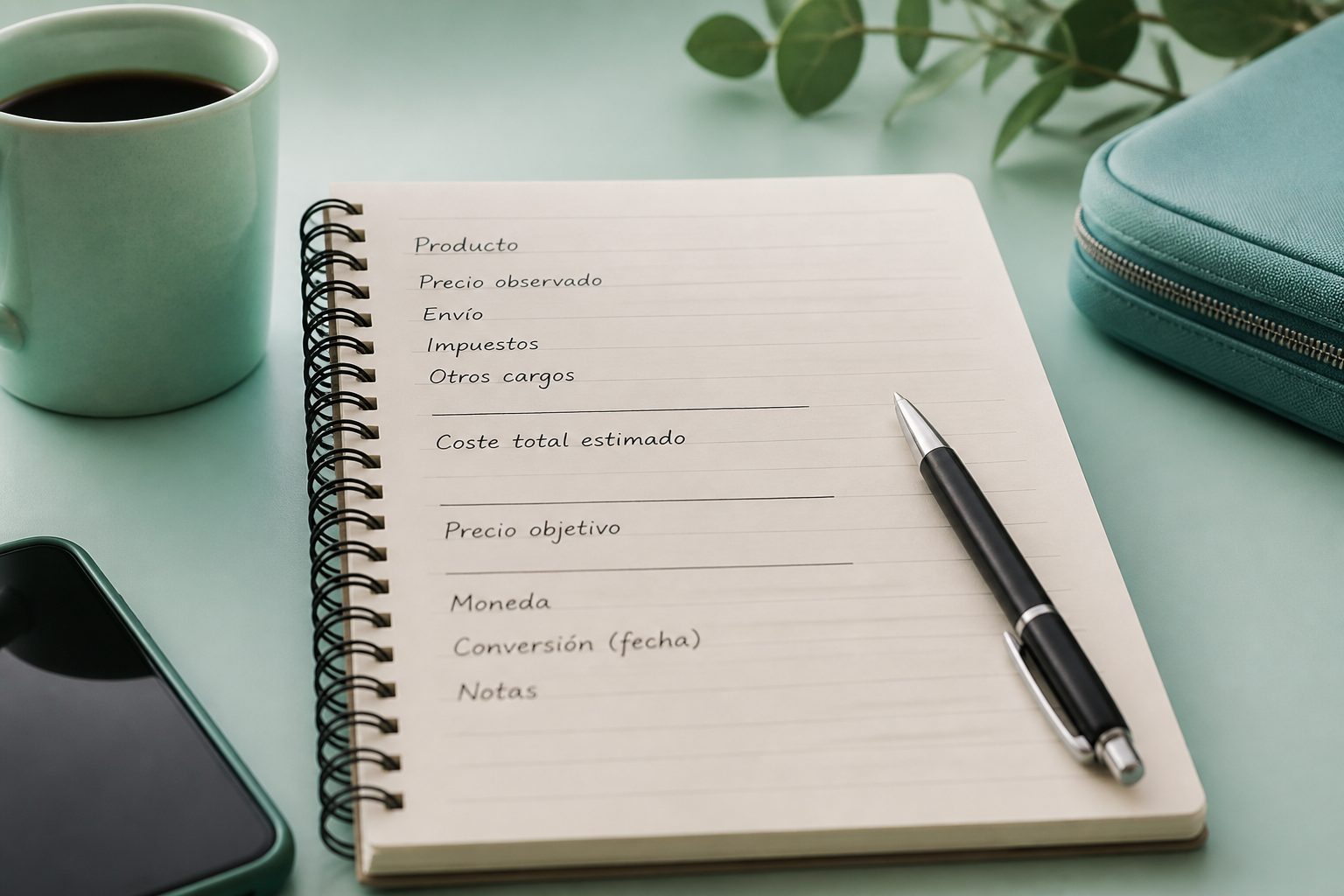
The displayed price is only one part of the decision. Alongside it, record the known costs added to the purchase, such as shipping, taxes, or other fees. The result is the estimated total cost: the figure you should compare with your budget.
It is also important to separate the observed price from your target price. The first describes what you saw on a specific date; the second is the maximum you have decided to pay. Having both fields prevents a discount or promotional message from determining your decision on its own.
Keep the original currency for each observation. If you convert an amount for comparison, record it in a separate field and indicate when you made the conversion. This prevents prices collected in different contexts from being confused.
- Enter amounts as numbers so you can sort and filter them.
- Use dates your spreadsheet recognizes, rather than irregularly written text.
- Check the total cost before deciding that your target has been reached.
Make the List Useful for Reviewing, Not Just Archiving
A simple way to stay organized is to use two records. In the main view, keep a summary of the items you are still considering: latest amount, total cost, target, priority, status, and next review date. In a separate record, add an entry every time you check a price.
That history preserves the context of each observation. Rather than replacing an earlier data point, you can see what you found, when you found it, and under what conditions. It does not turn the history into a prediction, but it does help prevent decisions based only on an offer’s current label.
Statuses and priorities help turn the list into a plan. You can use statuses such as tracking, ready to buy, purchased, or discarded, and assign high, medium, or low priority. Keeping names consistent makes filtering and sorting easier without creating duplicate categories.
- Add a new observation to the history every time you review a price; do not delete the previous one.
- Use predefined value lists for statuses and priorities if your spreadsheet allows it.
- Include a next review date so you do not give every item the same amount of attention.

Review What Matters and Confirm the Final Terms
Instead of checking the entire list continuously, review urgent or high-priority products first. Then address those approaching your purchase limit and those that have gone the longest without verification. This routine focuses your effort on cases where an update could change your decision.
You can use visual cues sparingly: for example, to distinguish items whose total cost is already within your target, pending reviews, or discarded products. If you accumulate too many markers and rules, the relevant information becomes harder to see.
Before marking a purchase as decided, check the variant, seller, product condition, and final cost again. Also confirm that delivery, returns, and the warranty meet your needs. The list fulfills its purpose when it supports an informed choice, not when it encourages a reaction to every price drop.
- Filter first by high priority and by items you are still considering.
- Use few visual alerts, and reserve each one for a specific action.
- If you discard an item, keep the record and briefly note the reason.
Sources and references
- Sort data in a range or table in Excel | Microsoft Support ↗
- Create an in-cell drop-down list - Computer - Google Docs Editors Help ↗
- Use conditional formatting rules in Google Sheets - Computer - Google Docs Editors Help ↗
- Learn how to improve Sheets performance - Google Docs Editors Help ↗
- Sort data in a range or table in Excel | Microsoft Support ↗